

If you’re new to Mac, like I am, you might be wondering: How do I close full screen on Mac? Don’t worry, it’s very simple once you know how!
Here are three quick and easy methods you can use to exit full-screen mode on your Mac:
A. Use the Green Button#
Move your mouse to the top of the screen until you see the menu bar and the three window buttons (red, yellow, green) appear in the top-left corner of the window.
Click the green button to exit full screen and return to normal window size. You can also click it again if you want to go back into full screen.
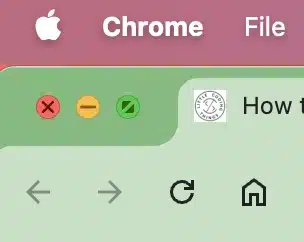
Tip: In macOS, the green button is not just for full screen — it’s also used to resize or tile windows. If you hold down the Option key while clicking, you can maximize the window without entering full screen.
B. Press and Hold Esc#
In some apps, you can simply press and hold the Esc key to exit full screen. This works in many media apps, like QuickTime or YouTube, when viewed in Safari.
While this doesn’t work in every app, it’s worth trying. Often, when you move your mouse to the top of the screen, you might see a small message saying: “To exit full screen, press and hold Esc.”
Hold Esc for about 3 seconds, and you should see the app switch back to windowed mode.
C. Keyboard Shortcut#
For a faster method, press Control + Command + F. This shortcut works in most Mac apps and will toggle between full screen and windowed mode instantly.
Tip: If you’re using a MacBook with the Touch Bar, you might see a dedicated “Exit Full Screen” button appear when you’re in full screen. Tapping it is the same as using the keyboard shortcut.
When Full Screen Won’t Exit#
There could be a case that your app may not respond to the methods mentioned above. In this case, try pressing Command + Tab to switch to another app, then close the full-screen one from the Dock.
You can also right-click the app icon in the Dock and select Options > Exit Full Screen if available.
If nothing works, press Command + Option + Esc to force quit the app, then reopen it in normal mode. This is rare, but it’s good to know if a program freezes while in full screen.
Why full screen feels so weird on a Mac 🤔#
This confused me for weeks after switching, so it’s worth explaining rather than just working around.
On a Mac, full screen isn’t “make this window bigger”. The app is moved into its own Space — its own virtual desktop, sitting to the right of everything else. That single fact explains all the odd behaviour:
- The menu bar and the Dock hide because nothing else lives in that Space. Move your pointer to the very top and the menu bar slides back down; move it to where the Dock lives and the Dock comes back.
- Your other windows haven’t closed. They’re on a different desktop, one screen to the left.
- Switching to another app with Command + Tab slides the whole screen sideways instead of putting a window on top, because macOS is walking you to a different Space.
- You can’t drag a file from a Finder window onto your full-screen app, because the two are in different Spaces.
Once you know that, the fix for “I can’t see anything else” is often not to exit full screen at all — it’s to move between Spaces.
Moving between full-screen apps without leaving full screen#
Three ways, all worth having in your fingers:
- Swipe left or right with three or four fingers on the trackpad (which one depends on your trackpad settings).
- Control + Left Arrow / Control + Right Arrow to slide one Space over.
- Control + Up Arrow opens Mission Control and shows you every Space and window at once. Your full-screen apps appear as tiles along the top.
Mission Control is also the quickest way to undo a mess: from there you can see exactly how many full-screen Spaces you’ve accidentally created.
Full screen vs. just making the window bigger#
Nine times out of ten, what people actually want isn’t full screen — it’s a big window that still behaves like a window. macOS has that, and it’s hiding behind the same green button:
- Option-click the green button to zoom the window to fill the screen while keeping the menu bar, the Dock and your other windows exactly where they are.
- Hover over the green button instead of clicking and a menu drops down, with Full Screen as one option and window-tiling choices — left half, right half, and so on — as the others. On recent macOS versions that little menu is the fastest way to arrange two windows side by side.
Same button, three completely different behaviours depending on whether you click, Option-click, or hover. That’s not obvious, and it’s not your fault for not knowing.
Frequently asked questions#
Where did my menu bar go in full screen?#
Nowhere — it’s hidden. Move the pointer to the very top edge of the screen and it slides back into view, along with the red, yellow and green window buttons. It hides again the moment you move away.
Why is my Dock missing in full screen?#
Same reason. Push the pointer past the bottom edge of the screen (or whichever edge your Dock lives on) and hold it there for a second, and the Dock reappears.
How do I stop an app from opening in full screen every time?#
macOS reopens apps in the state you left them. So exit full screen first, then quit the app with Command + Q. Next launch, it comes back as a normal window.
Can I take a screenshot while in full screen?#
Yes, and the shortcuts don’t change: Command + Shift + 3 captures the whole screen, Command + Shift + 4 lets you drag a selection, and Command + Shift + 5 opens the screenshot toolbar with recording options. More of these in our macOS shortcuts cheatsheet.
Does Control + Command + F work in every app?#
Apple’s own wording is “use or stop using the app in full screen, if supported by the app”. Most apps support it. A handful of games and older apps have their own idea of full screen, and those are the ones where press-and-hold Esc is your best bet instead.
What’s the difference between minimising and exiting full screen?#
Minimising (Command + M, or the yellow button) tucks the window down into the Dock and leaves it running. Exiting full screen returns it to a normal, resizable window on your main desktop. If a window has vanished entirely and you can’t find it, check the right-hand end of the Dock — it’s probably minimised down there.