

In this post, we’ll learn how to embed Codepen projects in WordPress the right way. If you are here, chances are, you have tried to embed a project and got an error about a referer required by Codepen.

I might also be right to assume that you did so by copy-pasting the project’s URL on your website while trying to do so.
Let’s explore a different way to embed Codepen projects without getting this error. The first thing you need to do is visit the project you would like to embed. While on the project’s page check to the bottom right and find a button labelled “Embed”.
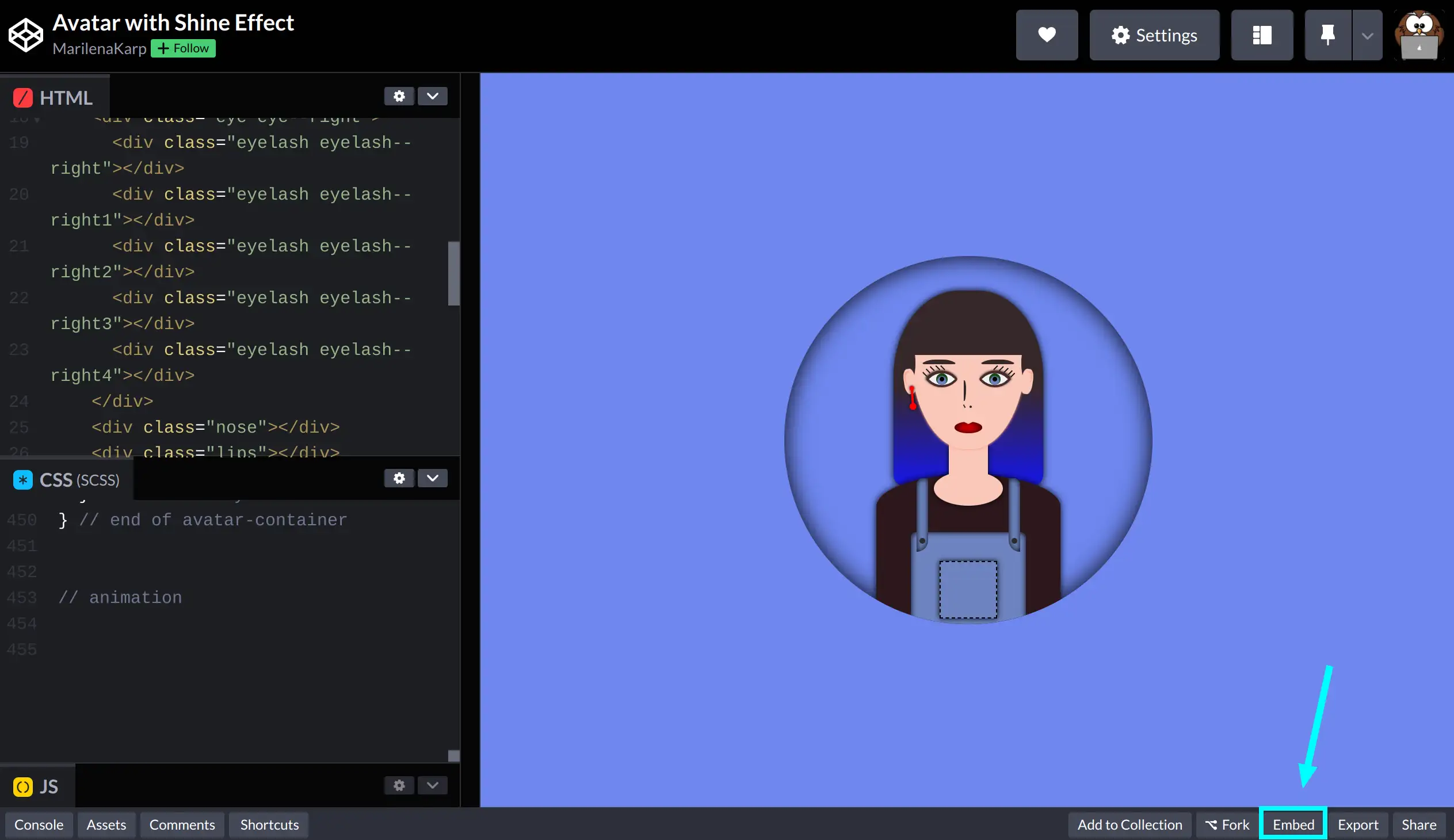
Click on it and you will see a modal popping up with the following options:
(We have added colored light blue numbers in the following image to help you out with each setting)
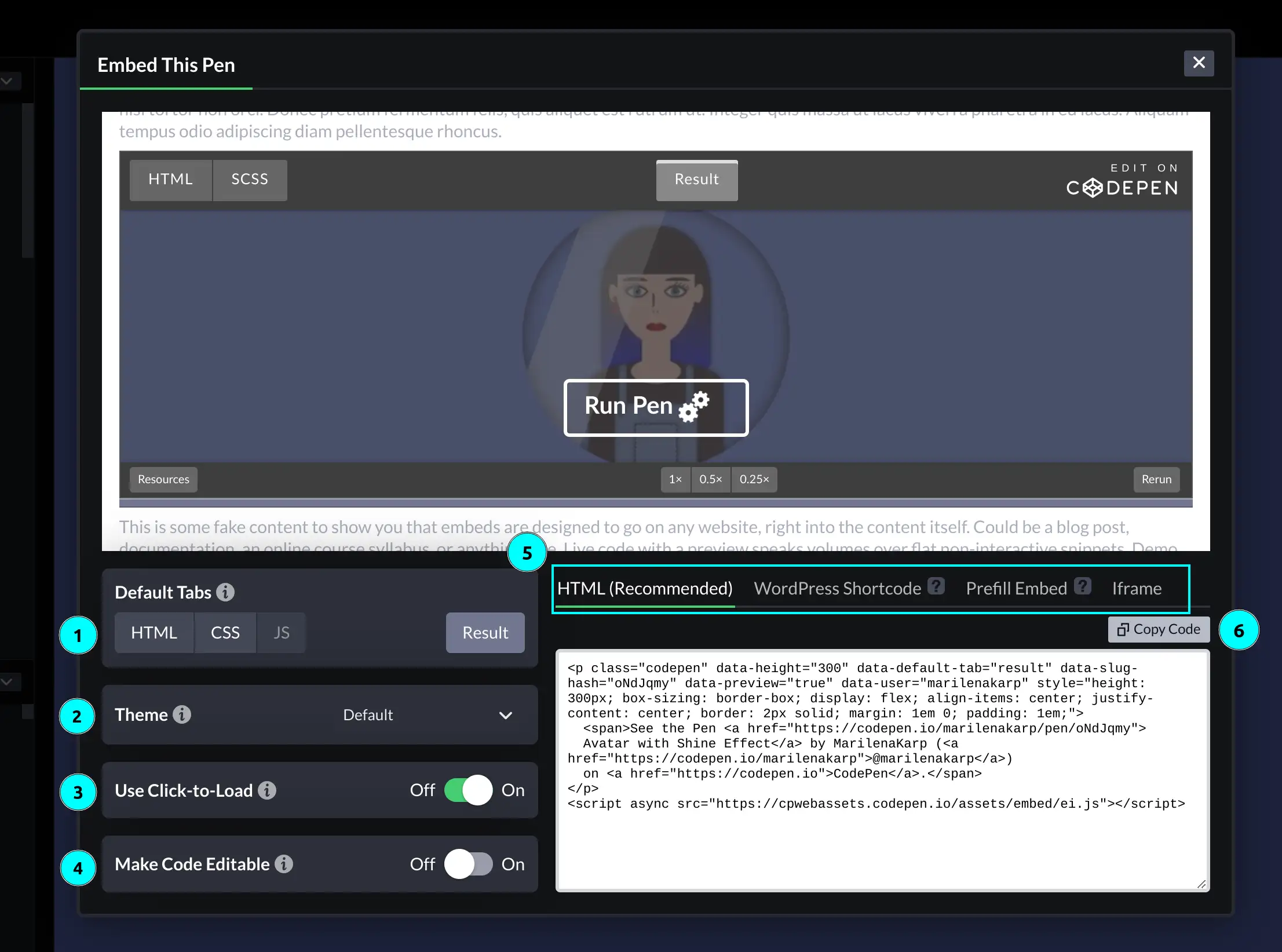
1️⃣ Default tabs – Here, you have the option to choose which tab will be initially displayed as selected.
2️⃣ Theme – Select if you would like to show your embedding in a light, dark, or custom theme.
3️⃣ Click to load – By enabling this setting your embedding will not load by default, it will rather show a “Run Pen ⚙️” cta at the bottom of your embedding preview.
4️⃣ Code Editable – Enable this setting if you would like to provide your viewers with the ability to edit the embedded pen in real time.
5️⃣ Code snippet type – Each tab (HTML, WordPress, etc.) shows a different type of code snippet you need for your embedding. The type you need depends on your WordPress Editor so you’d better check the Embeds Codepen’s guide to be sure what to select.
6️⃣ Copy code – Rather than manually selecting the code snippet, simply click this button to copy it. 😋
Adjusting height
There is a way to adjust the height of your embedding which is often easily overlooked. While on the embedding settings modal, hover over the bottom border on your preview screen, click on it, and adjust your height according to your needs.

An alternative approach could involve directly modifying the value of the data-height attribute within your code snippet to your desired value.
Finally, to embed your pen, go to your WordPress editor, type /shortcode, and press Enter.
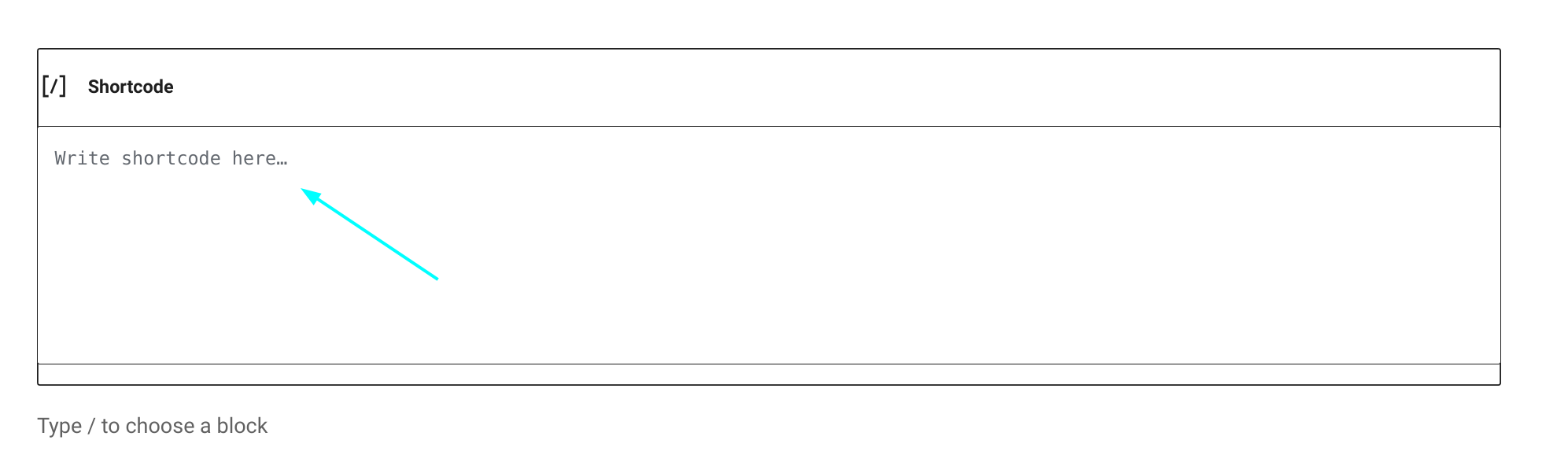
Paste the code snippet you copied from Codepen where it says: “Write shortcode here“.
Saving your post and previewing your changes should look something like:
See the Pen Avatar with Shine Effect by MarilenaKarp (@marilenakarp) on CodePen.
The four ways to embed a pen, and when each one is right#
“Embed a CodePen” means four different things depending on where you paste it, and only some of them survive WordPress. Roughly worst to best:
1. Pasting the pen URL on its own line. What most of us try first, and the route that produced the error that brought you here. CodePen’s own documentation is blunt about it too — the block editor’s default embed gives you “very little in the way of customization”. No height control, no theme, no default tab.
2. The HTML embed. The snippet from the Embed modal that starts with a <p class="codepen"> and ends with a <script> tag pointing at https://cpwebassets.codepen.io/assets/embed/ei.js. This is the one with all the settings baked in, and it’s what you want in a Custom HTML block.
3. The [codepen_embed] shortcode. CodePen publishes a WordPress plugin that provides this shortcode, which is what the /shortcode step above is for. Handy if you embed pens often and don’t fancy pasting a <script> tag every time.
4. A plain <iframe>. The one nobody mentions. Take your pen URL and change /pen/ to /embed/:
https://codepen.io/marilenakarp/embed/oNdJqmyThat URL is a complete, self-contained embed. Drop it into an iframe and you’re done — no script tag, nothing for a security plugin to strip. It’s my fallback whenever a site refuses to run CodePen’s embed script.
Tweaking the embed after you’ve pasted it 🎛️#
Every setting in that modal is just a data- attribute in the snippet, which means you can change your mind later by editing one word instead of going back to CodePen. These are the ones documented by CodePen and the ones you’ll actually reach for:
| Attribute | What it does | Default |
|---|---|---|
data-slug-hash |
Which pen to show — the ID from the URL | required |
data-user |
The pen’s author | — |
data-height |
Embed height in pixels; accepts "100%" |
300 |
data-default-tab |
Which tab opens first: html, css, js or result |
result |
data-theme-id |
The embed theme | 0 |
data-preview |
Click-to-load instead of running immediately | off |
data-animations |
run or stop-after-5 |
run |
data-border |
none, thin or thick |
none |
data-zoom |
Scales the preview: 1, 0.5 or 0.25 |
1 |
data-default-tab is the one that earns its keep on a blog. If the point of the post is the code, sending readers to a rendered result they have to click away from is backwards — set it to css or js and they land on what you were writing about.
Use data-preview if you embed more than one pen per post ⚡#
This is the setting labelled Click to load back in the modal, and it matters more than it sounds.
Every live embed is an iframe that loads CodePen, runs your HTML, CSS and Javascript, and pulls in whatever external libraries the pen depends on. Four of those on one page is four small websites booting up before your reader has scrolled far enough to see any of them.
With click-to-load, the reader gets a still preview and a “Run Pen” button, and nothing executes until they ask for it. The pens nobody clicks cost nothing at all.
When the embed just doesn’t show up#
A few failure modes that look mysterious and aren’t:
- You see the raw code instead of the pen. The snippet went into a paragraph block rather than a Custom HTML block, so WordPress escaped it and printed it. Move it into a Custom HTML block.
- The block is empty on the live site but fine in the editor. Something is stripping the
<script>tag — usually a security plugin, a caching layer, or user permissions that don’t allow unfiltered HTML. Switch to the/embed/iframe method above and the problem disappears, because there’s no script to strip. - The embed is the wrong height and clips the result. Edit
data-heightdirectly. The drag handle in the modal writes this same number, so there’s no reason to go back and re-copy the snippet. - The embed shows an older version of your pen. Embeds serve the saved pen. Unsaved changes sitting open in your CodePen tab aren’t part of it — save the pen and reload the post.
Frequently asked questions#
Can readers edit the code inside an embedded pen?#
They can be allowed to, using the Code Editable option in the embed settings. Their changes are theirs alone — nothing they type touches your original pen. It’s a lovely thing to enable on a tutorial, because “try changing this number” stops being a suggestion and becomes something they can just do.
Will an embedded pen slow down my blog?#
Yes, a little, and noticeably if you embed several. Each one is a live iframe. Turn on click-to-load (data-preview) when you have more than one on a page, and consider whether a plain code block would serve the reader better for a snippet that doesn’t need to run.
What happens to my post if I delete the pen?#
The embed breaks. Anything embedded from a third-party service is a link you don’t control — if the pen is deleted, or the account goes, the box on your post goes with it. For code you genuinely care about keeping, paste it into the post as well.
Can I embed a pen in a specific state, like showing only the CSS?#
Yes — that’s data-default-tab. Set it to css and the embed opens on the CSS panel rather than the rendered result.