

My new Next.js app got a deployment fail on Render.com, and if you faced the same issue, you understand my frustration. I mean, why did a new Next.js project failed to deploy? I did nothing exotic, all I did was type npx create-next-app@latest frontend and follow all the basic steps needed to deploy to Render.com.
Why did the deployment fail?#
Long story short, you deployed an app and didn’t define the node version your deployment service (Render) will use.
Even though you’ve built your project successfully on your local environment, that doesn’t mean Render.com will be able to do the same, since it might be using different software versions.
Now hang on a minute…you are correct to assume that since you’ve specified all necessary versions through your package.json file you are ready, and Render.com should follow these specifications. However, if you find yourself here, it’s likely because something is still missing or not properly defined. 😇
Okay, what wasn’t defined then? If you are experiencing the exact same issue as I did, your node version wasn’t defined in your package.json file.
Check your local node version by typing
node -vMy local node version was 18.18.2.
The problem is that Render was building with a completely different one. When this post was first written, Render’s default Node version was far older than mine and the build fell over on syntax my local Node was perfectly happy with.
Worth updating that detail, because it has flipped: Render’s default has moved on considerably — services created since April 2026 default to Node 24. So today the mismatch usually runs the other way, with Render on a newer Node than your laptop. The failure looks the same and the fix is identical. Either way, the lesson is the one that matters: don’t let the default decide. Pin the version, and your build stops depending on what your host happened to change this quarter.
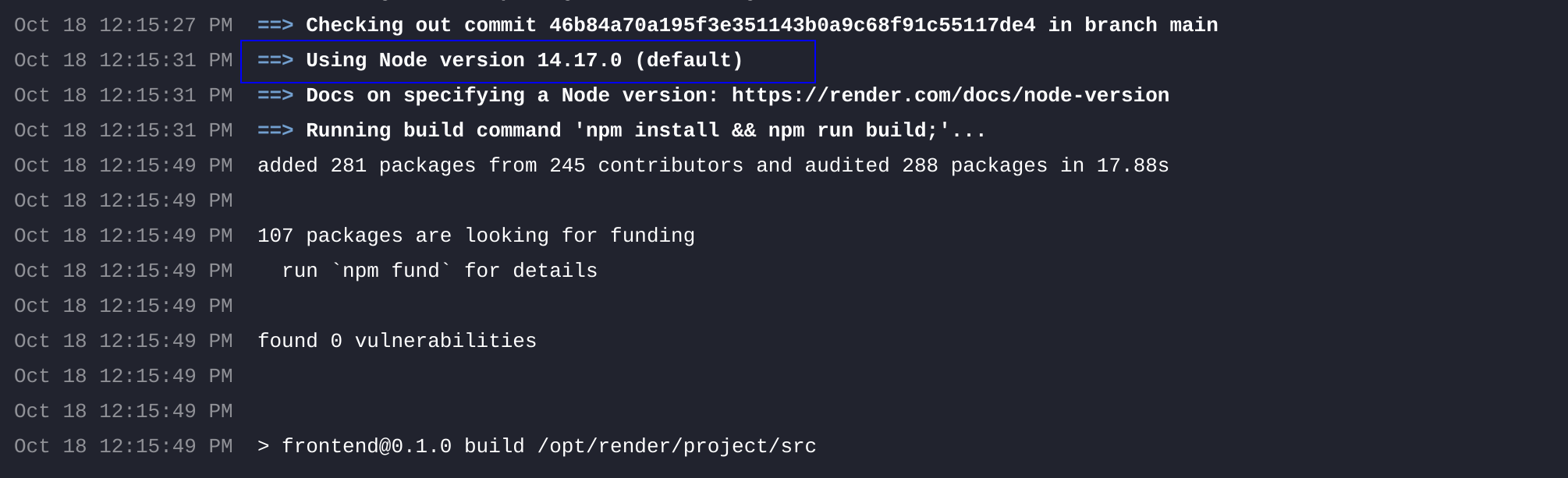
To verify this is the issue with your deployment, you can check your last deployment logs. Somewhere in the beginning you will see Render mentioning the node version it uses:
Deploying successfully#
To resolve this problem, we just need to follow a few simple steps. Don’t be afraid; in just a couple of minutes, you’ll be so proud of your deployed app!
The first step is to add in package.json the npm engine property and state our node’s version
  "scripts": {
    "dev": "next dev",
    "build": "next build",
    "start": "next start",
    "lint": "next lint"
  },
  "engines": {
    "node": "18.18.2"
  },
Although I haven’t read this elsewhere (so far) since we modified package.json, I like to run npm install to also generate the updated package-lock.json. This way I can include both package files in my commit.
Render’s docs say to always include an upper bound in that range, so ">=18.18.2 <19" is safer than an open-ended ">=18.18.2".
We’ll also add two small files. Each one contains a single line — just the version number, nothing else:
.nvmrc
18.18.2.node-version
18.18.2Get those filenames exactly right, because a typo here fails silently — Render doesn’t warn you about a file it never found, it just carries on with the default and you’re back where you started. It’s .nvmrc (no second r, and it stands for node version manager rc), and .node-version with a hyphen, not an underscore.
Both files belong at the root of your repository, next to package.json — not inside src/, even if your Next.js app keeps its code there.
The final step is to include a new environment variable on Render.com. Simply go to the Environment section of your service, and there you can add it by using NODE_VERSION as the key and setting its value to 18.18.2.
We are ready now! Commit and push your applied changes to the remote GitHub repo and a new deployment will be triggered automatically. Voila!
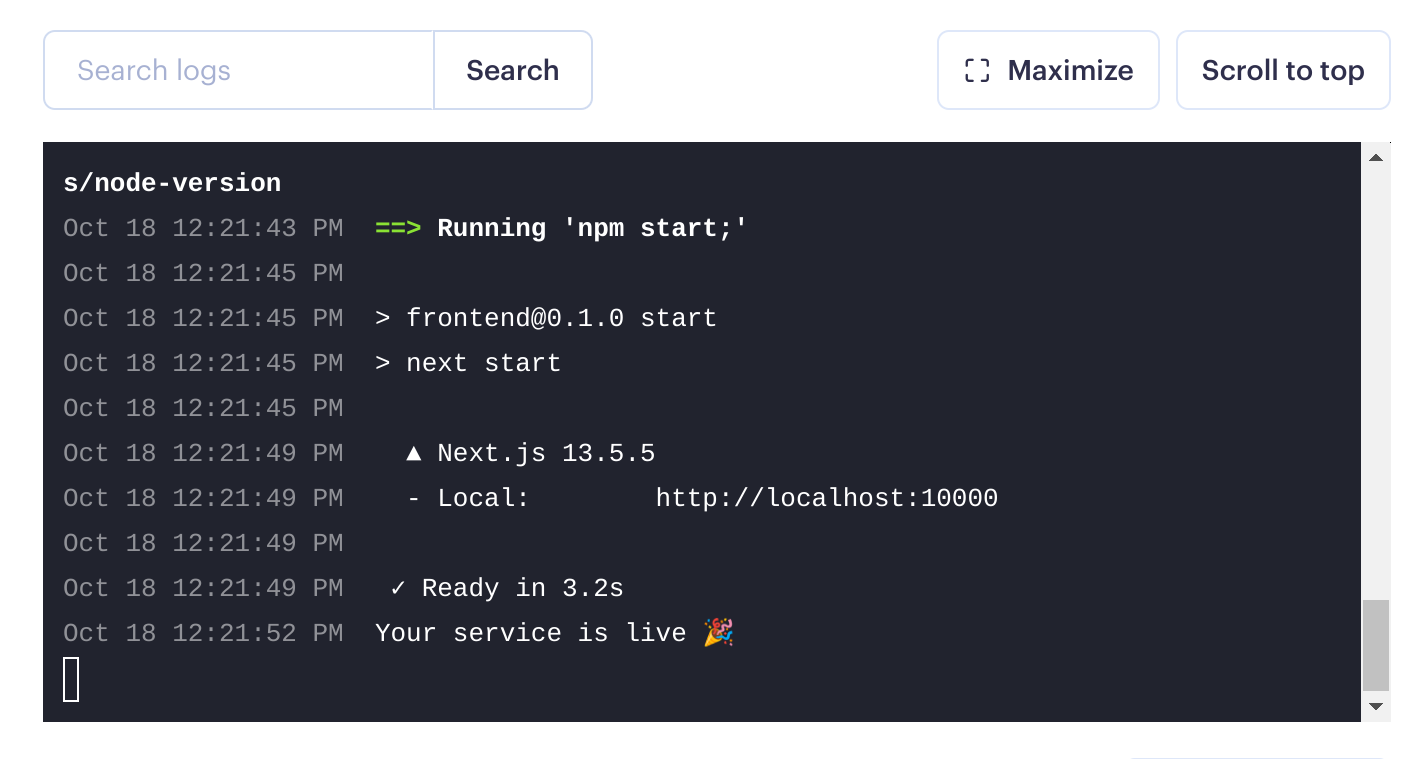
So awesome to see successful deployments!! 😎
Wait — why four different files for one version number? 🤨#
Fair question, and the answer is that Render checks several places and uses the first one it finds. Its documented order of precedence is:
| Priority | Where | Notes |
|---|---|---|
| 1 | The NODE_VERSION environment variable |
Set in the Render dashboard. Beats everything else. |
| 2 | .node-version |
A single line, at the repo root. |
| 3 | .nvmrc |
Same format, same place. |
| 4 | engines in package.json |
A range. Include an upper bound. |
You don’t strictly need all four. I set them anyway, because each one is read by a different tool: .nvmrc is what nvm picks up when a teammate types nvm use, engines is what npm warns on, and NODE_VERSION is what Render reads first. The same number everywhere means every tool in the chain agrees.
The trap comes when they disagree. If NODE_VERSION in the dashboard says 18 and your .nvmrc says 22, Render uses 18 and your .nvmrc looks like it’s being ignored — because it is. When a version change doesn’t take effect, check the dashboard environment variable first, since it silently outranks everything in your repo.
Reading the build log properly#
Everyone scrolls to the end of a failed log, where the error is. Scroll to the top instead: in the first few lines Render prints the Node version it decided to use, and comparing that to your local node -v answers the version question in about two seconds.
The other habit worth building is reading the first error rather than the last. A failed build produces a cascade, and the final twenty lines are usually consequences of something that went wrong much earlier.
That advice covers the build log, but the runtime log is a different problem: once your app is actually up, plain console.log output gives you no timestamps, no levels and nothing you can filter. Adding structured logging with Pino makes those lines searchable, which matters a lot more at 2am than it does while everything is working.
Other reasons a fresh Next.js deploy dies on Render#
If your versions match and it still fails, these are the usual suspects — in the order I’d check them.
Your Mac ignores capital letters, Linux does not 🔠#
This one catches nearly everybody once. macOS uses a case-insensitive filesystem by default; Render builds on Linux, which is case-sensitive.
// The file on disk is components/Button.js
import Button from './components/button'
That runs perfectly on your machine and fails on Render with a module-not-found error naming a file that is obviously right there. Check the capitalisation of the import against the actual filename, character by character. Git may not even show the rename if you only changed the case, which is what makes it so maddening.
A build tool that lives in devDependencies#
If your build runs with npm ci --omit=dev, everything in devDependencies is absent when next build runs. TypeScript, Tailwind and PostCSS are the ones that most commonly end up on the wrong side of that line. Our post on whether you still need npm install --save covers which packages belong where.
A missing environment variable at build time#
Next.js reads NEXT_PUBLIC_ variables during the build, not at runtime. If one is only defined on your laptop’s .env.local, the build either fails or — worse — succeeds with an undefined value baked into the bundle. Add them in Render’s Environment section before deploying, not after the first failure.
Frequently asked questions#
How do I know which Node version Render is using?#
The top of the build log states it. You can also confirm what your service resolved to by checking the NODE_VERSION environment variable in the dashboard — if it isn’t set, Render fell back to a file in your repo or to its own default.
Should I pin an exact Node version or a range?#
Pin an exact version in .nvmrc and .node-version, and use a range with an upper bound in engines — Render’s docs specifically ask for that upper bound. An open-ended ">=18" is an invitation for a future major release to break your build without you changing a line.
My build succeeds but the app won’t start — is that the same problem?#
No, that’s a different stage and a different fix. A build failure happens while next build runs; a start failure happens after. The most common cause there is the start command — a Next.js app needs to be a Web Service on Render, not a Static Site, and it needs to listen on the port Render gives it rather than a hardcoded 3000.
Do I need to redeploy after changing an environment variable?#
Yes — they’re read when the service builds and starts. Changing NODE_VERSION and then wondering why the log still shows the old version is a rite of passage.